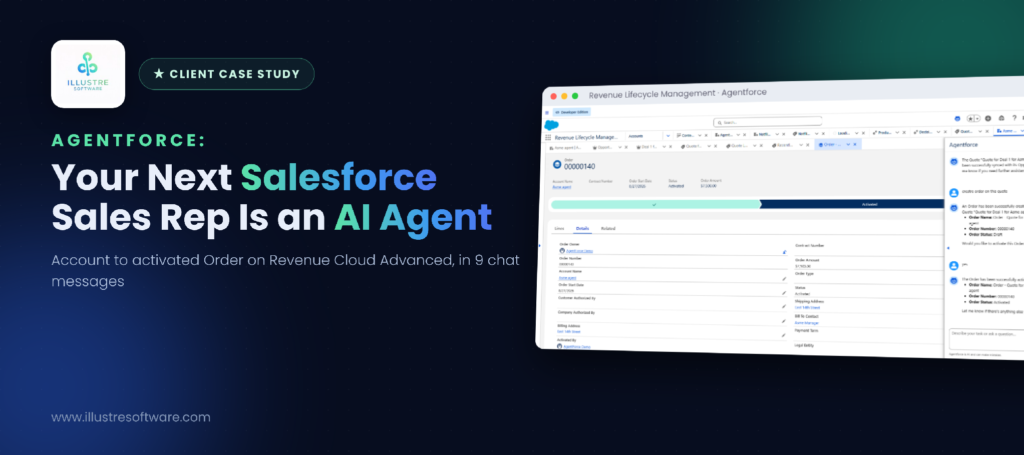
9
chat messages from new customer to activated order
12
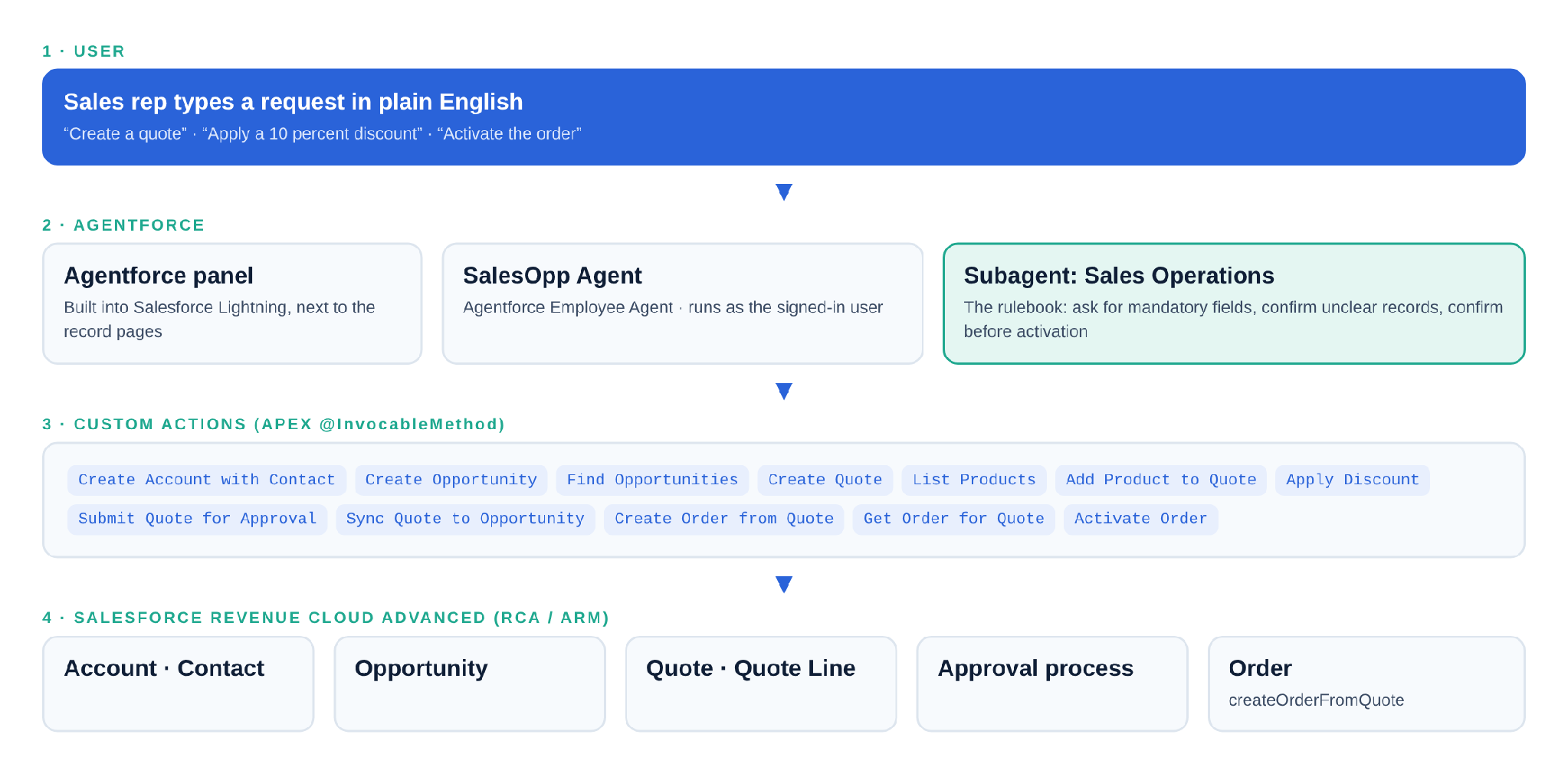
custom Apex actions, one job each
4
layers, 100% on the Salesforce platform
0
orders activated without a clear “yes”
In this article
- How it works, in simple terms
- Under the hood: the architecture
- The pattern behind every action
- The rulebook: subagent instructions
- Step 1: Create an Account
- Step 2: Create a Deal (Opportunity)
- Step 3: Create a Quote
- Step 4: Add a Product
- Step 5: Apply a Discount
- Step 6: Submit for Approval
- Step 7: Sync the Quote
- Step 8: Create an Order
- Step 9: Activate the Order
- Testing the agent
- Wrapping up
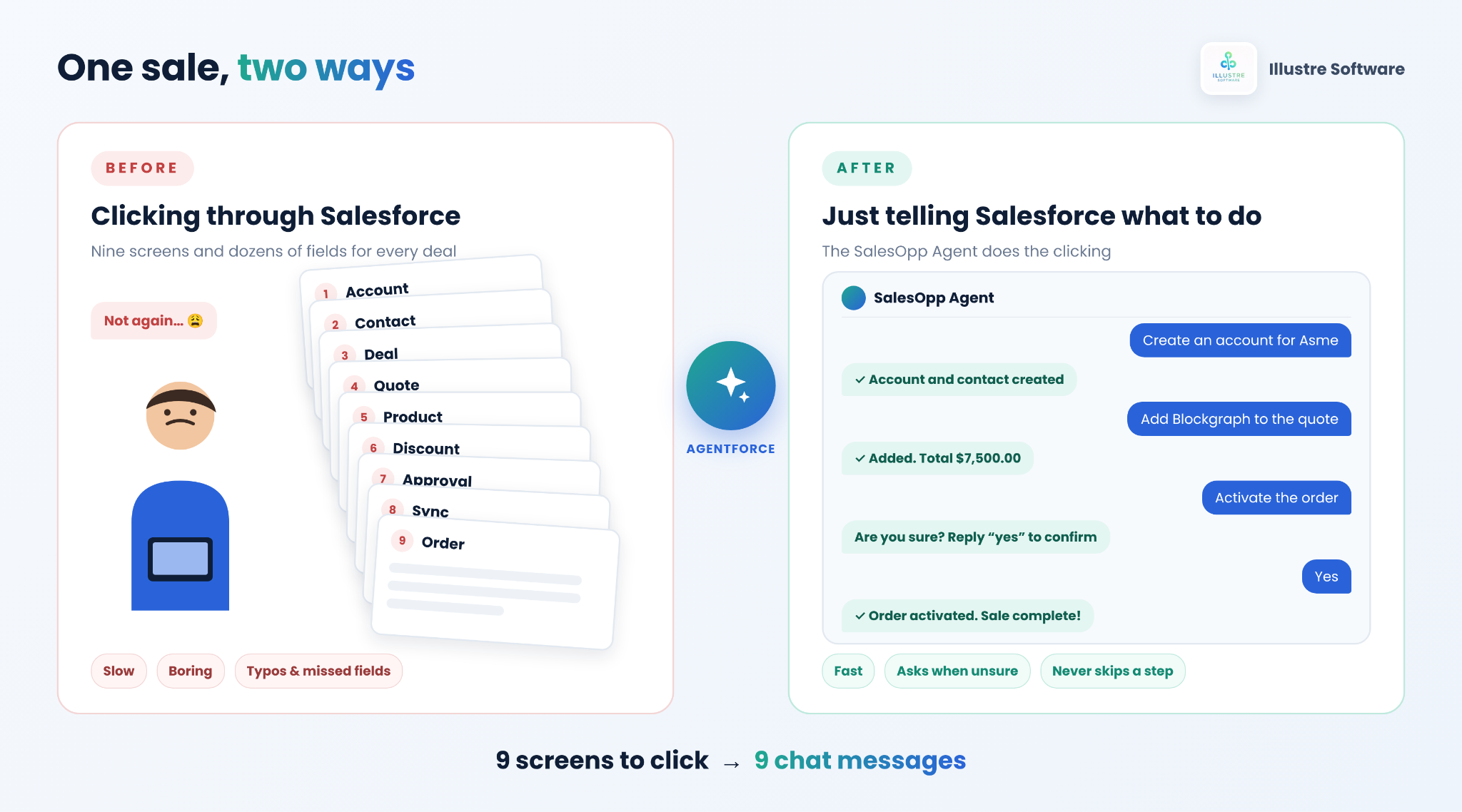
Picture a sales rep who has just agreed a deal on a call. The customer is happy, the price is settled, and she should be moving on to her next call. Instead, she opens Salesforce and starts clicking. She creates the customer’s account. Then a deal. Then a quote. She searches for the product, types the quantity, adds the discount, sends it for approval, syncs it, creates the order and finally activates it.
That is nine separate screens and dozens of fields for one sale. It is a bit like having to fill in nine different forms every time you buy a coffee. It is slow, it is boring, and every form is another chance for a typo.
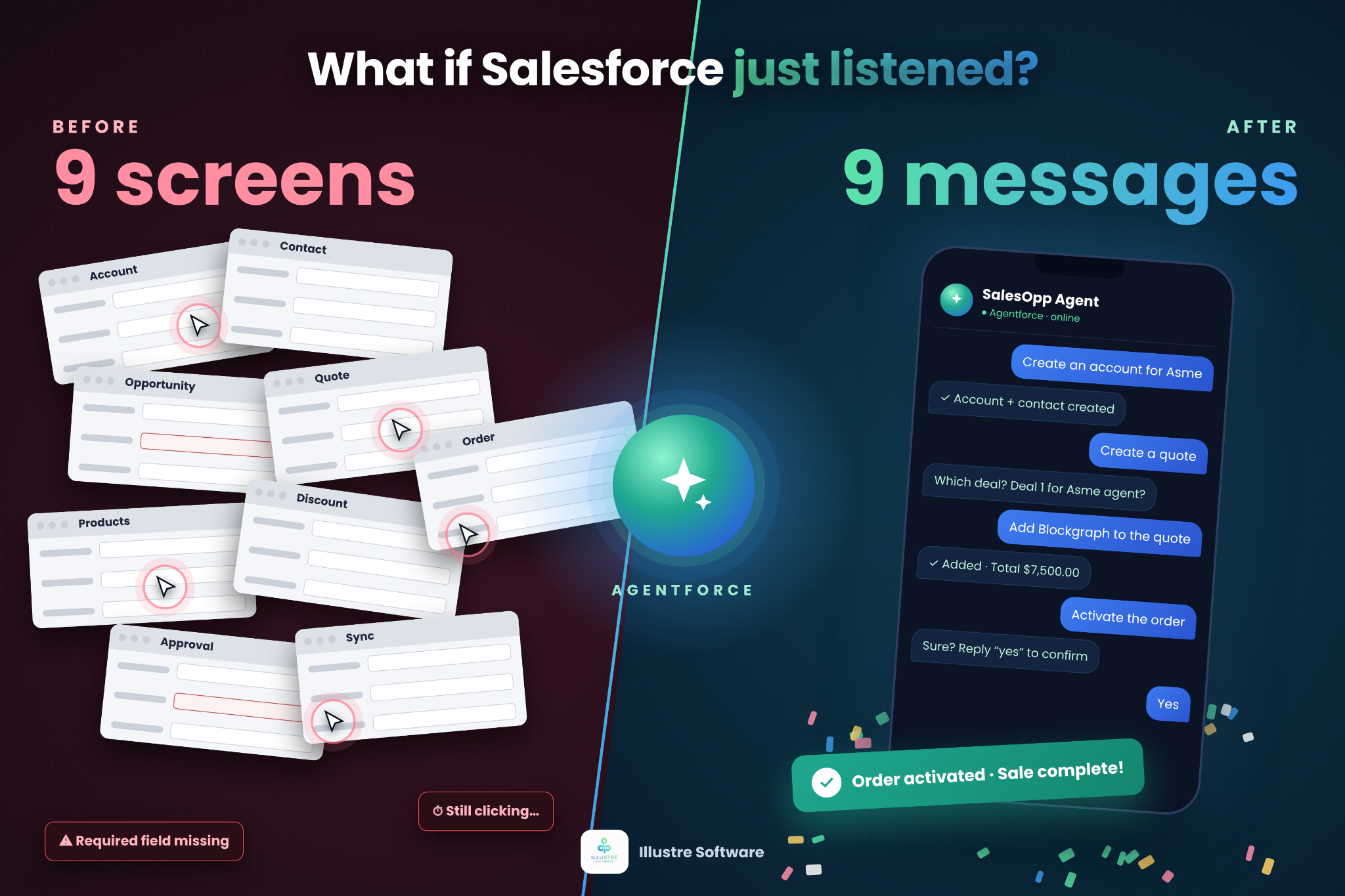
So we asked a simple question: what if she could just tell Salesforce what she wants, the same way she would ask a colleague? “Create an account for Asme.” “Add Blockgraph to the quote.” “Activate the order.” And Salesforce simply did it.
That is exactly what we built for one of our clients. The SalesOpp Agent is an AI assistant that lives inside Salesforce. It asks for anything that is missing, double-checks when something is unclear, and never activates an order without a clear “yes”. A full sale, from a brand-new customer to an activated order, now takes nine short chat messages.
How it works, in simple terms
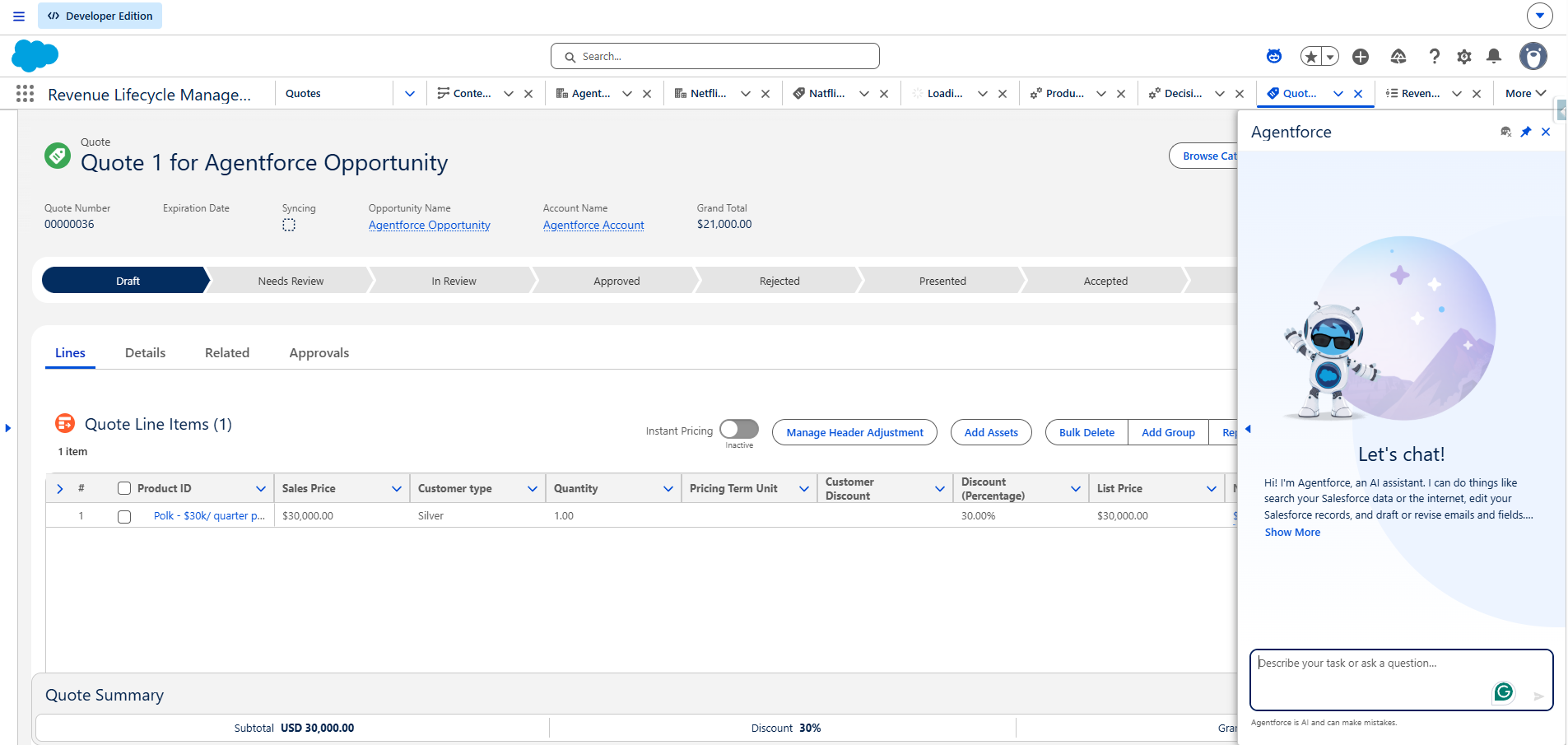
Think of the agent as a new team member with three things:
- ➜A brain. Agentforce, Salesforce’s AI, understands what the rep types and decides what to do next.
- ➜A toolbox. Twelve small tools, called actions. Each one does exactly one job, such as “create a quote” or “apply a discount”.
- ➜A rulebook. Plain-English instructions that tell the agent when to use each tool, and when to stop and ask the rep first.
The rep talks, the brain picks the right tool, the rulebook keeps it safe, and the tool does the work in Salesforce. That’s it. The rest of this blog opens the hood and shows how each part is built.
Under the hood: the architecture
Now for the technical part. The solution runs entirely on the Salesforce platform, on Revenue Cloud Advanced (RCA / ARM) with Agentforce. It has four layers:
The pattern behind every action
Before we go step by step, here is the pattern all twelve actions share. Agentforce reads the label and description of every action and input to decide when to call it, so these descriptions matter as much as the code. Every action also returns a simple Success flag and a plain-English Message instead of throwing errors, so the agent can always explain what happened.
The rulebook: subagent instructions
The “ask before you act” behaviour doesn’t come from code. It comes from the instructions we wrote for the Sales Operations subagent in Agentforce Builder. A few of the most important rules:
With the pattern and the rulebook in place, let’s walk through the sale one step at a time.
Step 1 of 9
1Create an Account
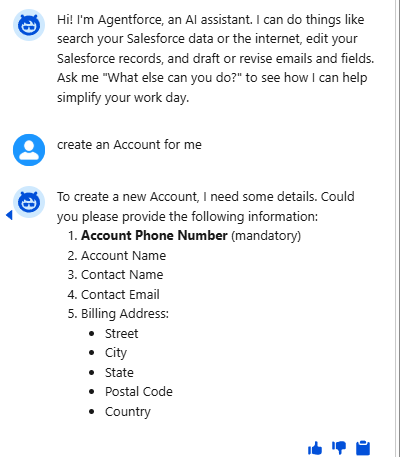
The rep asks for a new customer account. The agent makes sure it has the phone number, contact and address before it creates anything.
💬 The rep types
Create an account for me
🛠 How it’s built
The action marks Account Phone as required, so the agent has to collect it before it can call the action. The Account and its primary Contact are then created in one go, both as the signed-in rep.
✅ What happens
✓The agent asks for all missing details in one message, not one at a time.
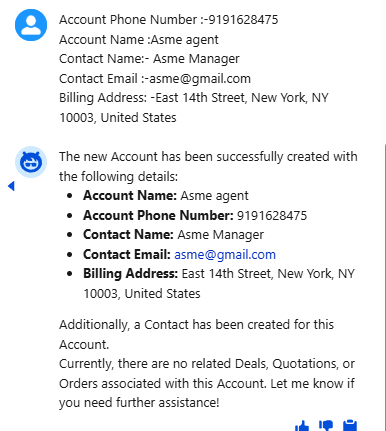
✓The contact’s full name is split into first and last name automatically.
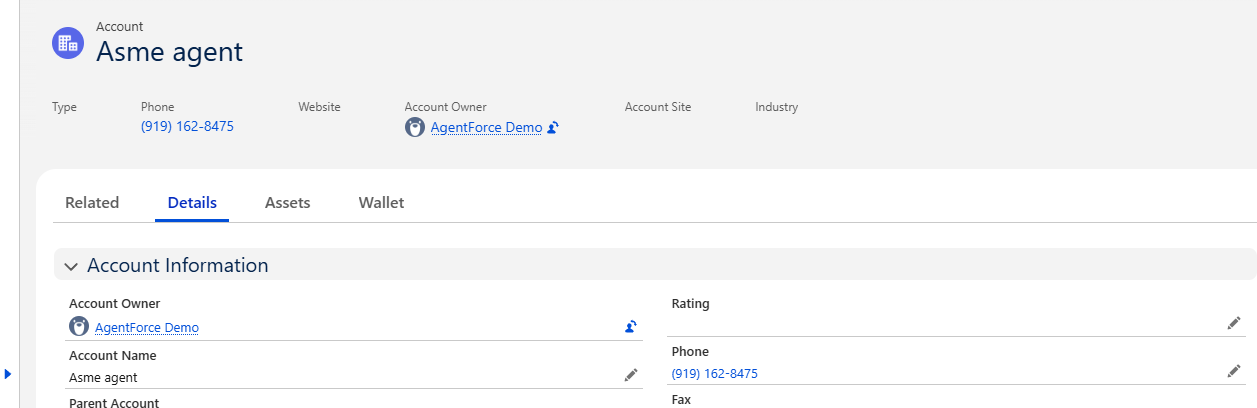
✓The result: Account “Asme agent”, Contact “Asme Manager”, Account Reference ARN-0063.
🧪 In the sandbox
Step 2 of 9
2Create a Deal (Opportunity)
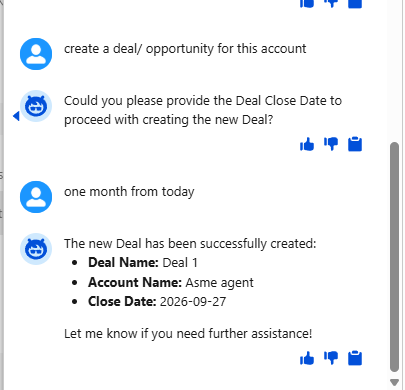
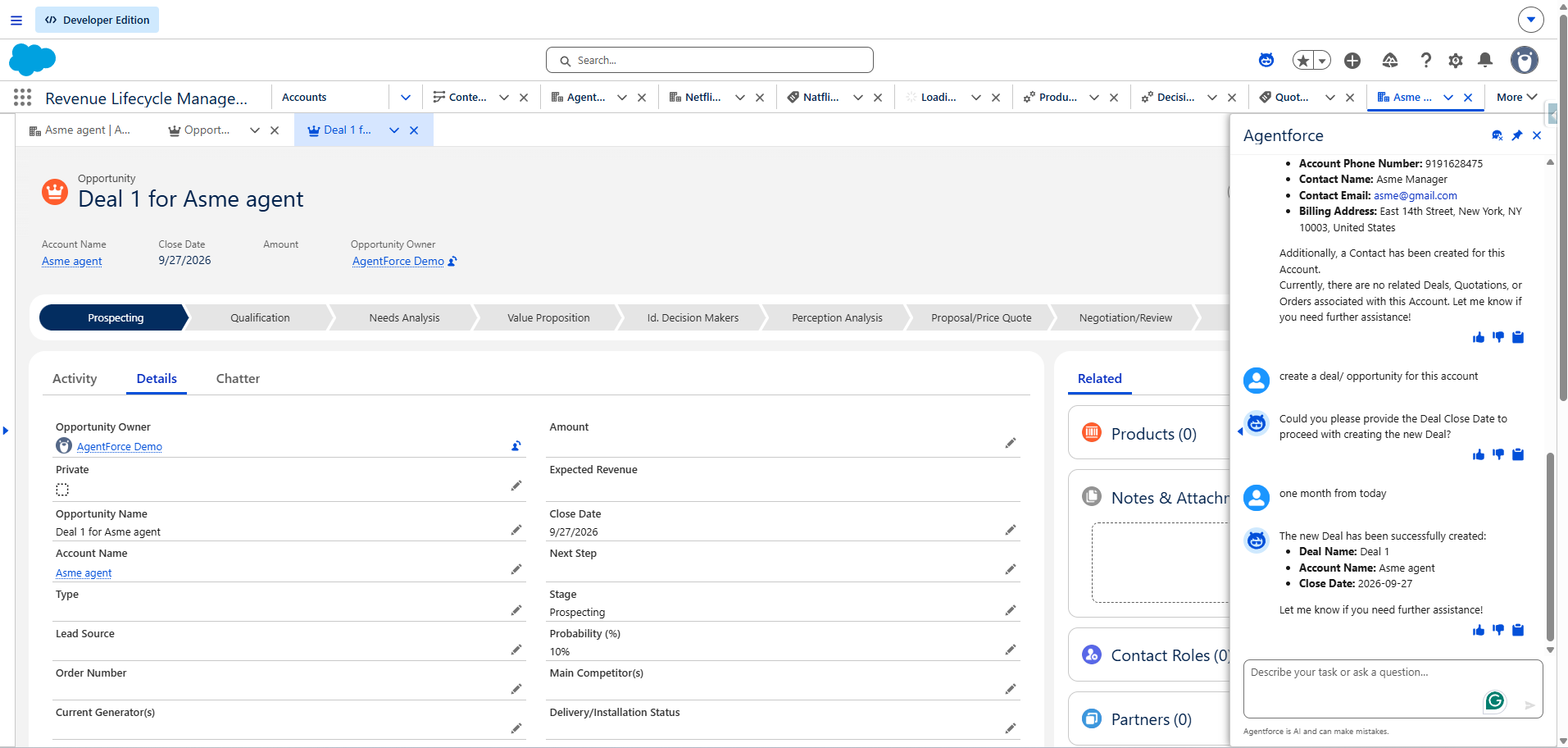
The rep asks for a deal on the new account. When she says the deal should close “one month from today”, the agent works out the actual date.
💬 The rep types
Create a deal / opportunity for this account
one month from today
🛠 How it’s built
The close date input is a real Date. Its description tells the agent to convert relative phrases first, so the LLM does the date maths and the action only ever receives a clean value. The deal name is built from a count of the account’s existing deals.
✅ What happens
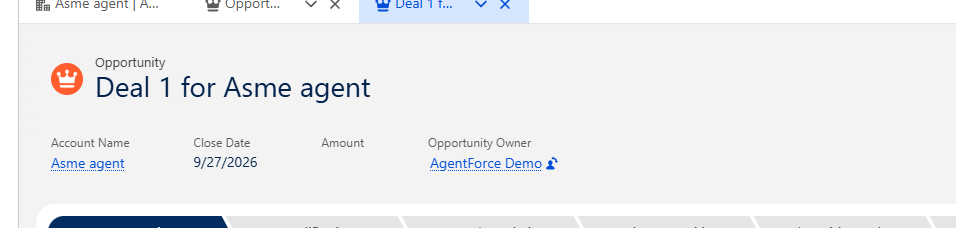
✓“one month from today” became 2026-09-27.
✓The deal is named “Deal 1 for Asme agent” and starts at Prospecting.
🧪 In the sandbox
Step 3 of 9
3Create a Quote
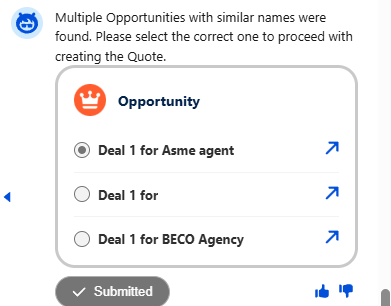
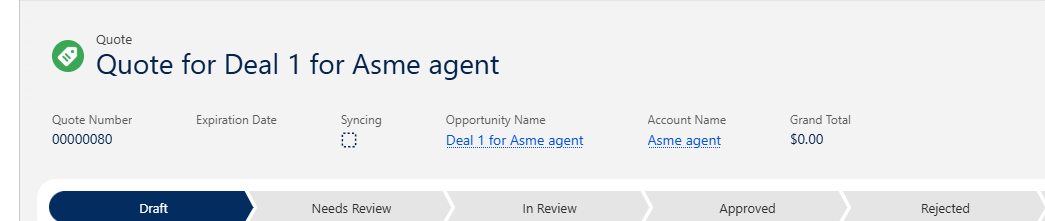
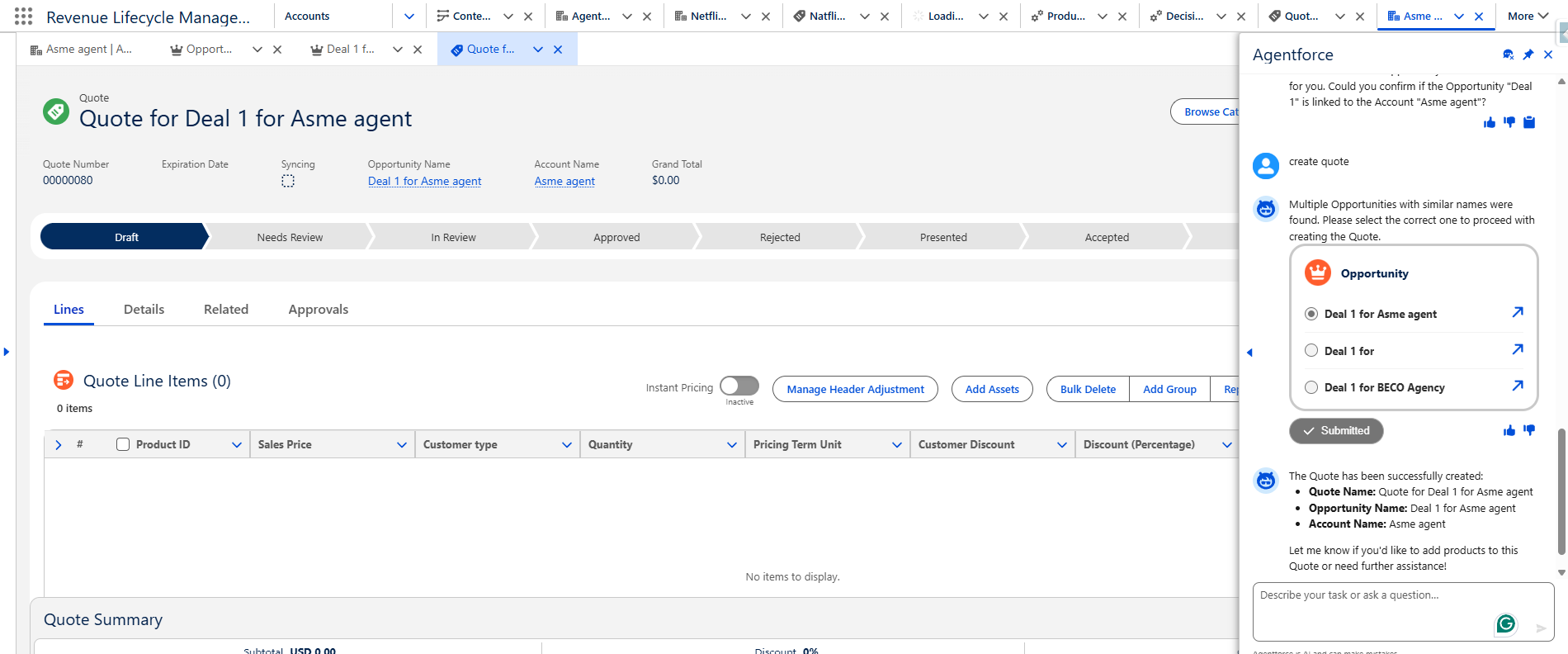
The rep asks for a quote. The sandbox had three deals with similar names, so instead of guessing, the agent showed them and asked which one to use.
💬 The rep types
Create a quote
🛠 How it’s built
This step uses two actions. Find Opportunities searches open deals by name and returns the matches. The rulebook tells the agent to show the list when there is more than one. Only after the rep picks one does Create Quote run.
✅ What happens
✓Returning a list of Opportunity records lets Agentforce show them as a pick-list in the chat.
✓Create Quote also sets the deal’s price book if it is empty, which quote sync needs later.
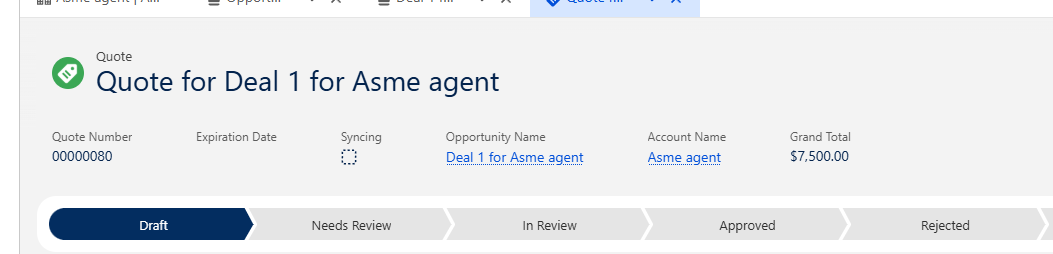
✓The result: Quote 00000080 in Draft, linked to the right deal.
🧪 In the sandbox
Step 4 of 9
4Add a Product
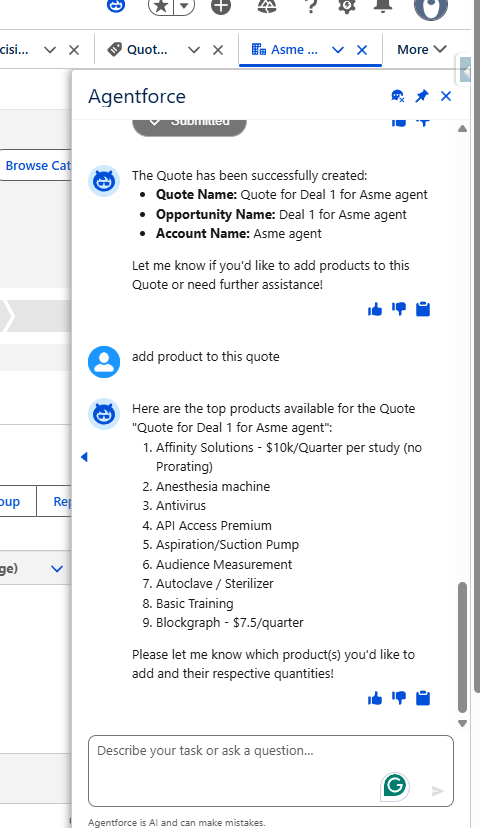
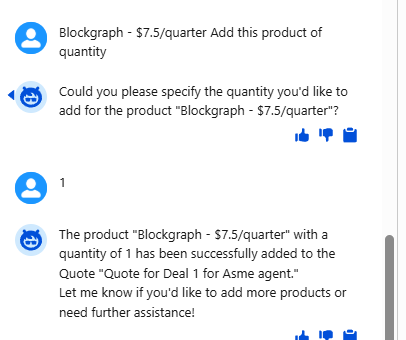
The rep asks to add a product. The agent shows the product catalogue right in the chat, she picks one, and the agent asks how many.
💬 The rep types
Add product to this quote
Blockgraph – $7.5/quarter, quantity 1
🛠 How it’s built
List Products reads the quote’s price book and returns a numbered list. Add Product to Quote then looks the product up by exact name. If it finds none, or more than one, it stops and asks instead of guessing.
✅ What happens
✓Quantity is a required input, so the agent always asks for it.
✓The quote’s Grand Total updates to $7,500.00.
🧪 In the sandbox

Step 5 of 9
5Apply a Discount
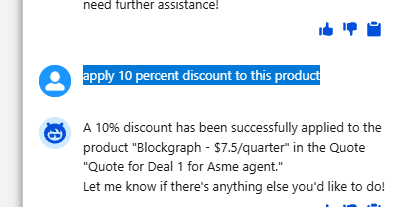
The rep asks for a 10% discount on the product. One sentence, and it’s done.
💬 The rep types
Apply a 10 percent discount to this product
🛠 How it’s built
Apply Discount finds the matching quote line (asking if several match) and sets the standard Discount percentage field.
✅ What happens
✓The Discount (Percentage) column on the line now shows 10.00%.
✓Tip: if your org uses Revenue Cloud pricing procedures, write lines through the Place Sales Transaction API so prices recalculate automatically.
🧪 In the sandbox

Step 6 of 9
6Submit for Approval
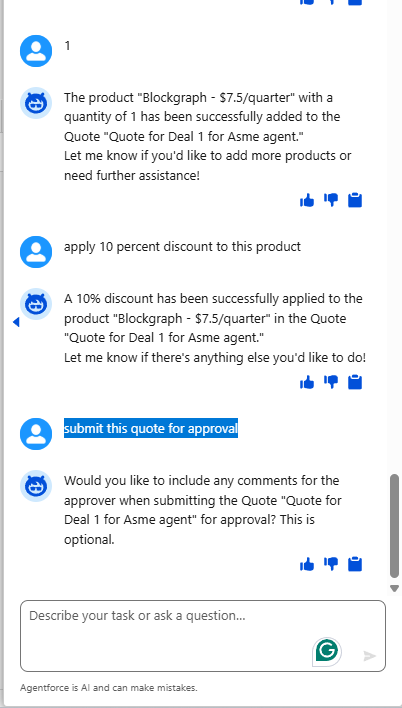
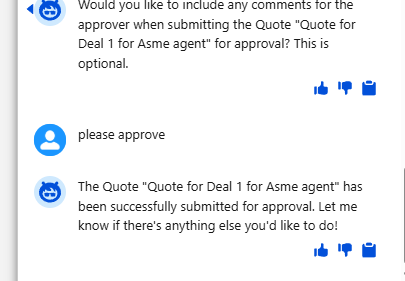
The rep sends the quote for approval. The agent politely offers to add a note for the approver first.
💬 The rep types
Submit this quote for approval
please approve
🛠 How it’s built
The action uses Salesforce’s standard Approval API, so the quote goes through the client’s existing approval process with no shortcuts. The optional comment is passed straight to the approver.
✅ What happens
✓The comment is optional, so the rulebook tells the agent to offer it rather than demand it.
✓If your org uses Advanced Approvals, start that approval flow here instead.
🧪 In the sandbox
Step 7 of 9
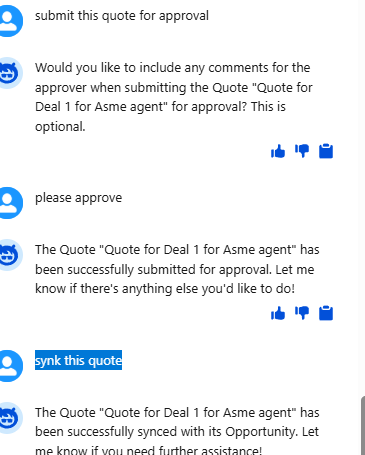
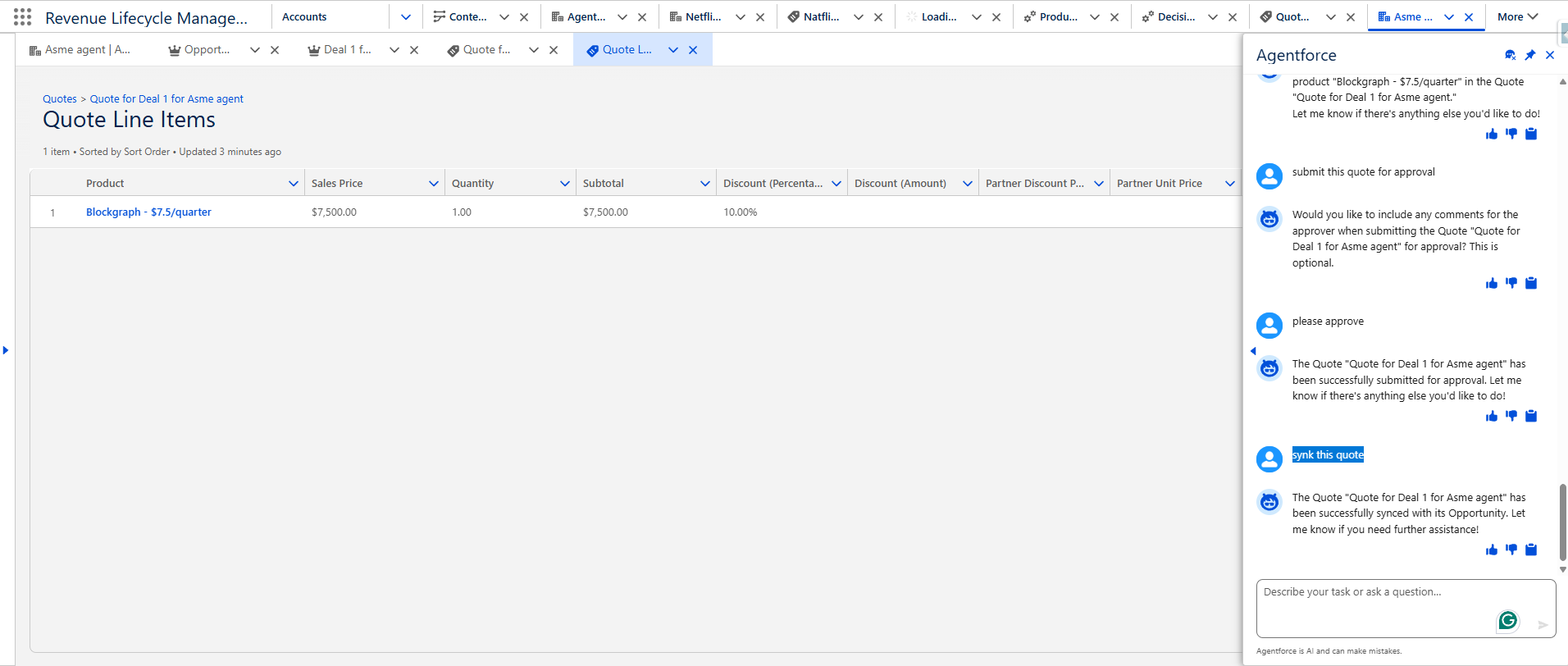
7Sync the Quote
The rep asks to sync the quote, so the deal always shows the same products and prices as the quote.
💬 The rep types
Sync this quote
🛠 How it’s built
Syncing in Salesforce is a single field: the Opportunity’s SyncedQuoteId. The action simply points it at this quote.
✅ What happens
✓Sync only works when the quote and the deal use the same price book. That’s why Create Quote sets it in Step 3.
🧪 In the sandbox
Step 8 of 9
8Create an Order
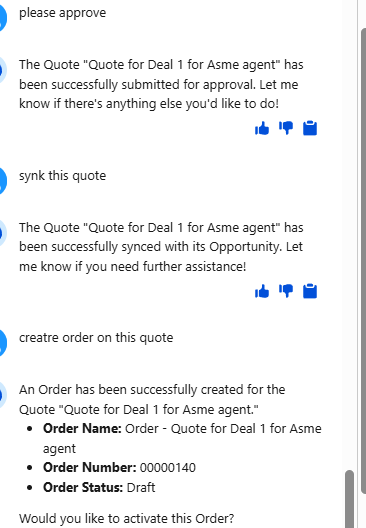
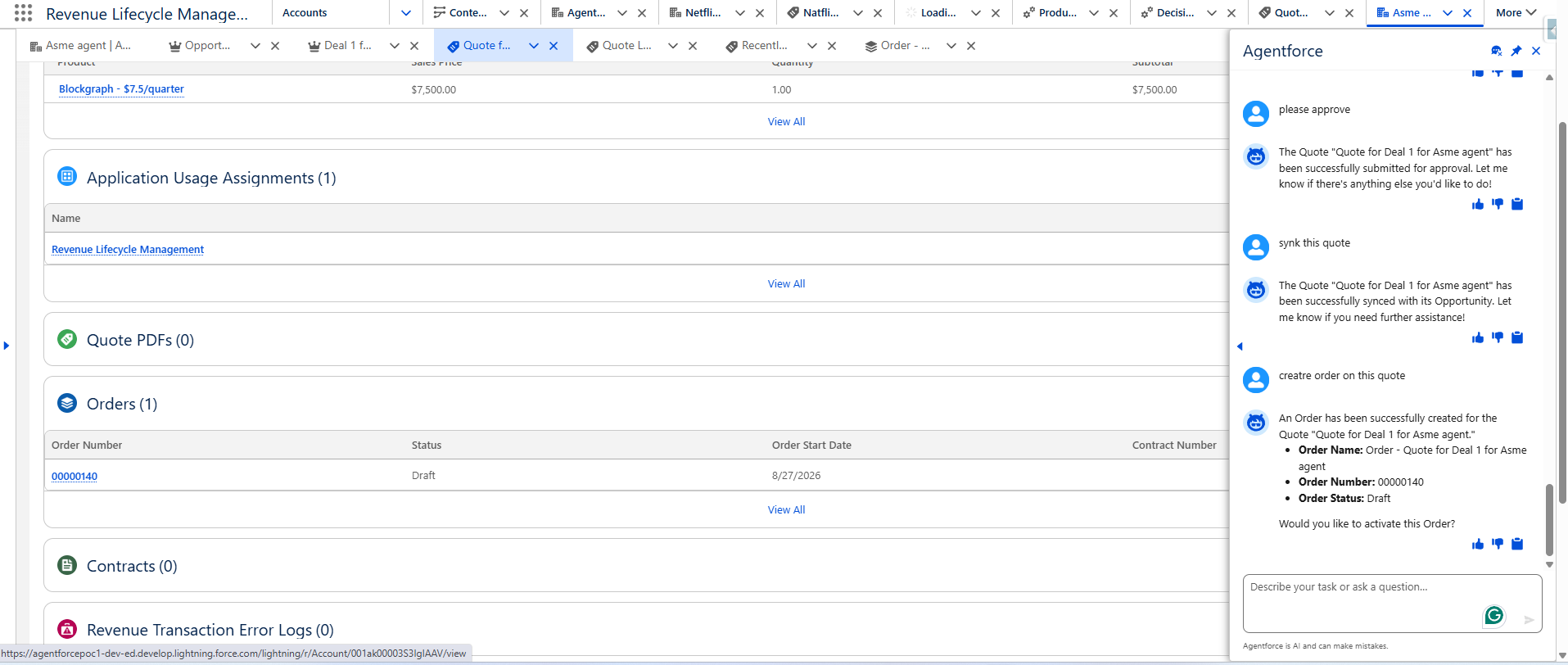
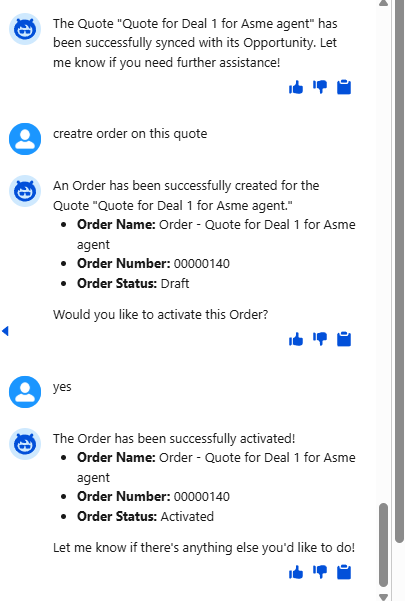
The rep turns the quote into an order. The agent creates it, tells her the order number, and asks if she wants to activate it.
💬 The rep types
Create an order on this quote
🛠 How it’s built
Instead of copying fields by hand, the action calls Revenue Cloud’s own standard action, createOrderFromQuote, from Apex. It runs in the background, so a second small action, Get Order for Quote, reads back the new order’s number and status.
✅ What happens
✓Using the standard action means products, pricing and billing details carry over exactly as Revenue Cloud intends.
✓Use API version 57.0 or later for createOrderFromQuote (we used 65.0).
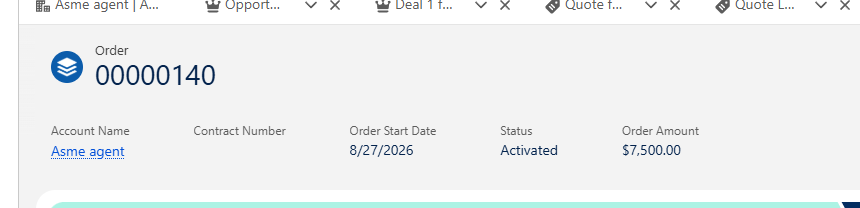
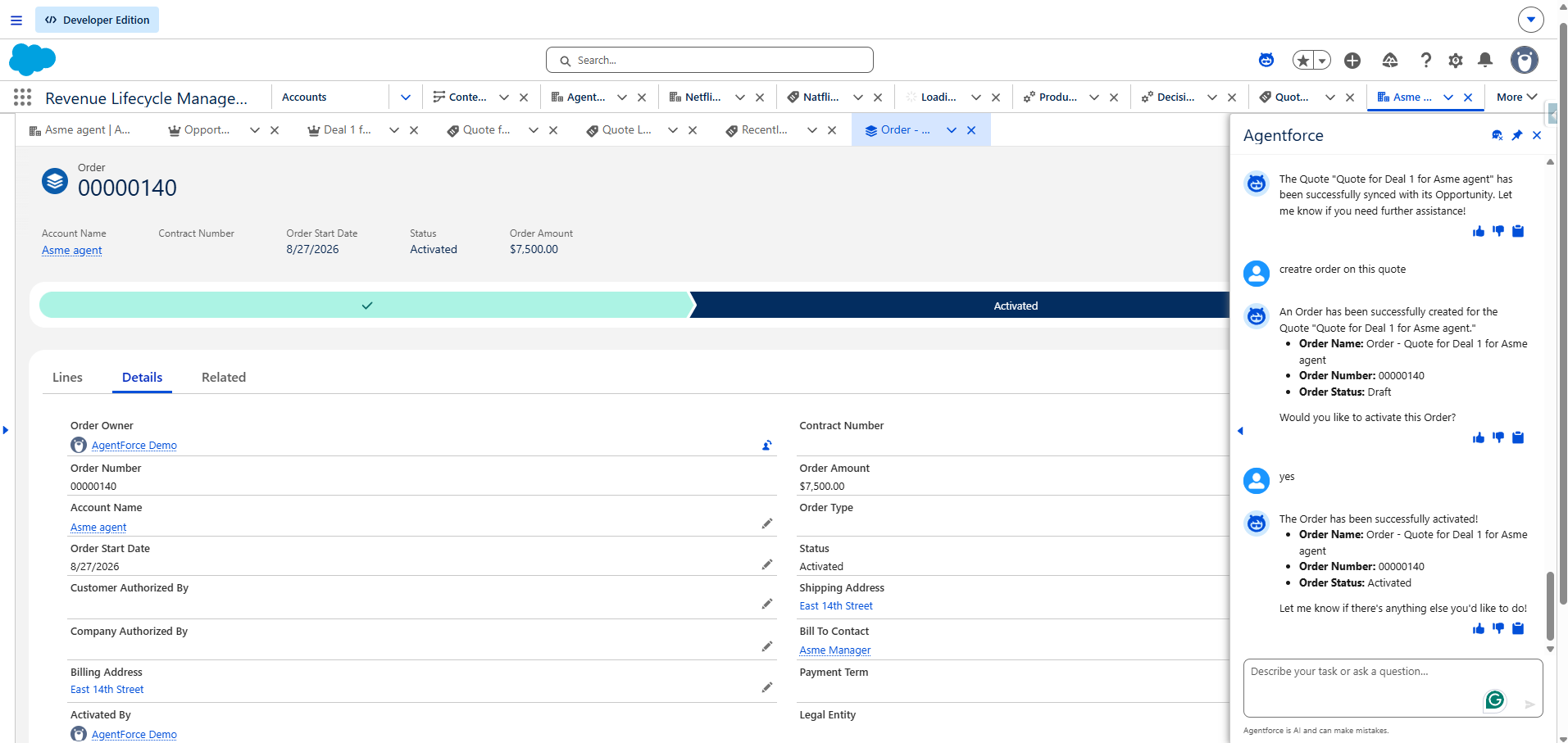
✓The result: Order 00000140 in Draft.
🧪 In the sandbox

Step 9 of 9
9Activate the Order
The rep says “activate the order”. The agent checks once more, she says “yes”, and the sale is complete.
💬 The rep types
Activate the order
yes
🛠 How it’s built
Activation is the one step that can’t easily be undone, so it has two guards: the action’s description says to call it only after explicit confirmation, and the rulebook says the same. The code itself is a single update.
✅ What happens
✓The order moves from Draft to Activated with an amount of $7,500.00.
✓Nine prompts, zero record pages opened by hand.
🧪 In the sandbox
Testing the agent
We tested the agent in Agentforce Builder’s preview panel by running the nine prompts above, in order, and checking every response and record. Once it worked end to end, we saved the same prompts as test cases in Agentforce Testing Center, so every future change is checked against the full journey.
Wrapping up
The SalesOpp Agent shows that an AI agent doesn’t need to be complicated to be useful. Twelve small, well-described actions, one clear rulebook and Salesforce’s own security model were enough to turn a nine-screen process into a nine-message conversation.
- ➜Faster deals. The full quote-to-order cycle takes minutes in one chat.
- ➜Fewer errors. Mandatory fields are always collected, and unclear records are always confirmed.
- ➜Same process every time. Approval and sync are never skipped.
Written by
Shivam Shendre
Shivam writes about Agentforce and Salesforce Revenue Cloud implementations at Illustre Software Services, sharing how we turn multi-screen sales processes into simple conversations.